You can choose from a range of effects to apply to your media sources. As of MixEmergency 3.3.0, all previous effect plug-ins are now built into MixEmergency. If you're using a version earlier than this then you will need to download and install these separately.
Most effects have either one or two effect parameters that can be adjusted. The adjustments of these effects can be assigned to one of the following controls (this varies depending on the source of the effect).
Using these controls you can quickly and easily add effects that react dynamically to mixing and scratching.
When controlling the effect parameter with the Position control, the knob that appears to the right controls the rate of the effect.
When controlling the effect parameter with the Velocity control, a mapping graph will appear to the right. Clicking on this mapping graph will pop out a larger editing view.
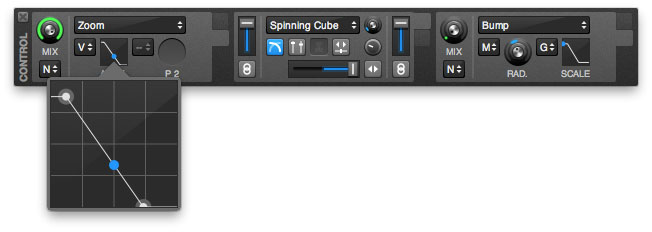
The vertical range corresponds to the effect parameter, and maps directly onto the range of the effect parameter knob. The second range corresponds to velocity, and maps the velocity of the media. This is an advanced function of the program, and may take some time to get used to.
The mapping graph has three parts: two mapping points and a mapping indicator. The mapping points can be repositioned by dragging the points around the graph. The mapping indicator is a blue dot that will automatically move to show the currently mapped position on the graph.
The effect parameter (vertical) range is from 0 to 10 (i.e. the same as the range on the effect parameter knob) and controls the range of the effect to control.
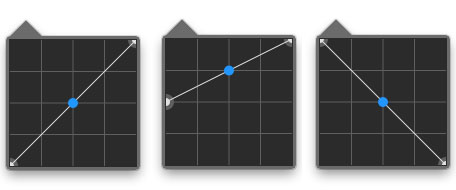
The above examples show:
The velocity (horizontal) range is from -2 to 2 and controls the range of the velocity to affect the control. At -2 the media would be playing backwards at double speed, 0 would be stopped, 1 would be playing forwards at normal speed and 2 would be playing forwards at double speed.
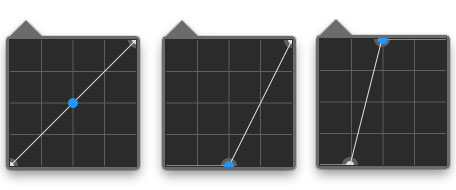
The above examples show:
The blue dot on the mapping graph gives an indication of how the current velocity is mapped.
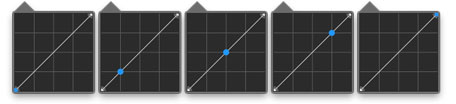
The above examples show:
Once you understand how these controls work, you will be able to quickly and easily create effects that compliment your video scratching.
The bass control mode graph is similar to the velocity graph. The only difference is that the horizontal axis represents the time since the bass triggered the effect parameter. When the bass triggers the effect parameter the blue mapping indicator will jump to the left of the graph and slowly move towards the right.
The Grid control mode graph is similar to the velocity graph. The horizontal axis represents one beat (as defined by a preset Beatgrid, or based upon the BPM of the currently loaded media). As the beat progresses it will shift from the left to the right.
