Overlay Window
The Overlay Window can be used to display text, images, Quartz Compositions, video input, NDI streams, Syphon streams, and border fills, over the output of MixEmergency. This window can be shown/hidden from the Window menu, or by using the keyboard shortcut ⌘5.
Text Overlay
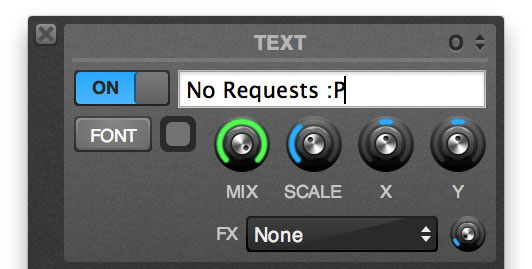
The Text overlay can be used to display static or scrolling text over the output of MixEmergency. The controls, in order from top left to bottom right are:
- On/Off - Toggles the text overlay.
- Channel - Allows you to place the overlay on the Output, Left or Right channel.
- Text - Text to display.
- Font - Displays a standard font panel.
- Color - The color of the text.
- Mix - The opacity of the overlay.
- Scale - The height of the font.
- X - The horizontal position of the overlay.
- Y - The vertical position of the overlay.
- Effect - The effect applied to the overlay.
- Effect Parameter - An adjustable parameter of the effect.
The Text Overlay Window is useful for adding short text titles or advertisements over the output.
Image Overlay
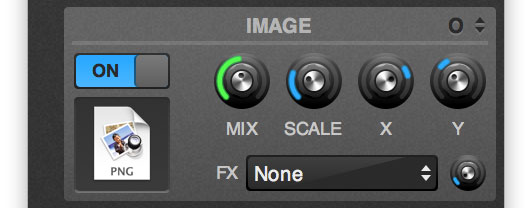
The Image overlay can be used to display a static image over the output of MixEmergency. The controls, in order from top left to bottom right are:
- On/Off - Toggles the image overlay.
- Channel - Allows you to place the overlay on the Output, Left or Right channel.
- Image - Drag and drop image files here to set them as the current image.
- Mix - The opacity of the overlay.
- Scale - Scales the image.
- X - The horizontal position of the overlay.
- Y - The vertical position of the overlay.
- Effect - The effect applied to the overlay.
- Effect Parameter - An adjustable parameter of the effect.
The Image Overlay Window is useful for adding titles, logos or advertisements over the output. It supports most image file formats that Quicktime can open.
Quartz Composition Overlay
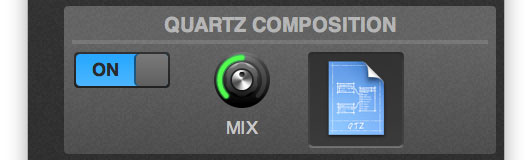
- On/Off - Toggles the Quartz Composition overlay.
- Quartz Composition - Drag and drop Quartz Compositions here to set them as the current Quartz Composition overlay.
- Mix - The opacity of the overlay.
Video Input Overlay
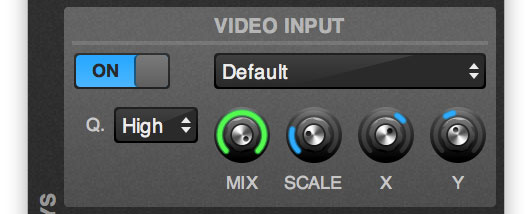
- On/Off - Toggles the Video Input overlay.
- Device - Allows you to select the Video Input device.
- Quality - Allows you to lower the quality level of the video input.
- Mix - The opacity of the overlay.
- Scale - Scales the image.
- X - The horizontal position of the overlay.
- Y - The vertical position of the overlay.
Border Fill Overlay
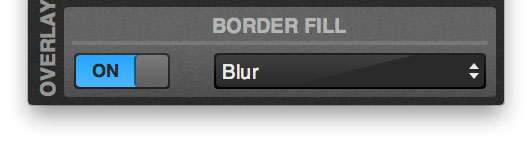
The Border Fill overlay differs from the other overlays in that it is applied to each channel prior to the channel's effects.
The purpose of this overlay is to fill in the "black bars" that are often seen on videos which have an aspect ratio that differs from the output aspect ratio. You can select from one of several effects to fill this space.
Syphon and NDI Overlay
These overlays allow you to overlay a live video feed via either Syphon or a NDI input.
